R6X Private Hack Guide - Complete Installation and Setup Tutorial
Detailed installation and setup guide for R6X Private Hack on Rainbow Six Siege X (R6S)
Back to R6X Private Hack descriptionFrequently Asked Questions about R6X Private Hack
❓ How to launch R6X Private Hack?
Follow the guide below. The process usually includes downloading, installing and activating the cheat.
📥 How to download loader for R6X Private Hack?
Click the button on the right, pass captcha — and you'll be redirected to the Telegram bot with the link.
⚡ System Requirements
🎥 R6X Private Hack Installation Video Guide
Step-by-step video guide for installing and configuring R6X Private Hack
Step-by-Step Installation Guide for R6X Private Hack
Software Usage Guide
Step-by-step guide for downloading and launching our software:
Step 1: Preparation
After payment, you will receive:
- a key to activate access to the cheat,
- a link to this manual.
Prepare your PC:
-
Completely disable Windows Defender (real-time protection). Remove other antivirus programs if installed.
-
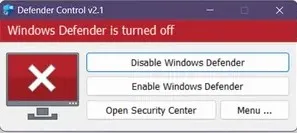
We recommend disabling Windows Defender using Defender Control, download here (password: sordum). It should be red, with a red cross.
-
Uninstall: Faceit AC, ACE (AntiCheatExpert).
-
Enter the game without the cheat and set the screen mode to "Windowed", the software will not work in "Full Screen".
Step 2: Loader Installation & Key Activation
-
Download the loader from the "Frequently Asked Questions" section above by clicking the "Download loader" button.
-
The full instruction manual from the cheat developer is available at this link
Step 3: FAQ for Common Issues
- Windows Defender / Antivirus enabled → fully disable.
- Update Visual C++ libraries → Download.
- Update DirectX → Download.
- Remove FaceIt anticheats.
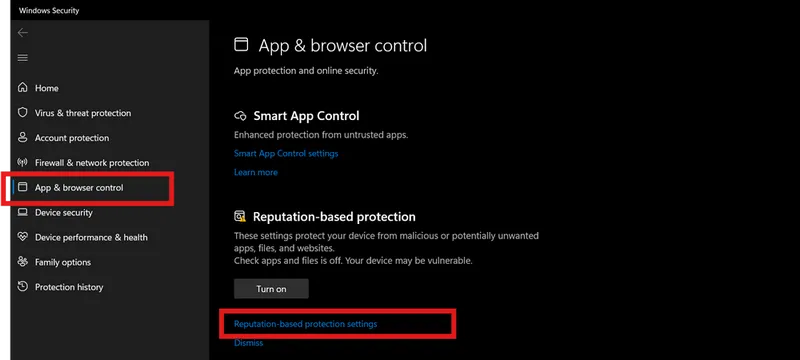
- Disable Reputation-based Protection:
- Start → type Reputation-based Protection.
-
Disable all options.
-
Sync system time (Windows Settings → Time & Language → Sync).
- ESP displays incorrectly → scaling 100% + same in-game resolution.
- Loader fails → try with VPN.
- Disable Core Isolation.
- Injection/gameplay issues → switch screen mode to Windowed.
📝 Additional Information
🔒 Security and Anonymity
Our product receives regular updates to ensure maximum security and compatibility with the latest game versions.
🆘 Technical Support
If you encounter any issues with installation or operation, contact our technical support.